
On this page
Building a Power BI report, an integration or a custom report on Business Central usually starts with one question: which table and field does this value come from? Page Inspection answers it for any page in Business Central, without opening any code.
Short answer: open the page and press Ctrl + Alt + F1, or choose the ? (Help & Support) icon and select Inspect pages and data.
What is Page Inspection in Business Central?
Page Inspection is a built-in Business Central pane that shows what's behind the page you're looking at: the page name and ID, its source table and table ID, every field on the selected record with its current value, and the extensions that change the page.
For BI and integration work it's the quickest way to map what users see on screen to the tables you need to export or report on.
How to open Page Inspection
- Open the page that contains the data you want to inspect, for example the Customers list.
- Press Ctrl + Alt + F1. Alternatively, choose the ? (Help & Support) icon in the top-right corner and select Inspect pages and data.
- Read the pane that opens on the right. It has three tabs:
- Table Fields: the source table and all of its fields, with the values for the selected record.
- Extensions: the extensions that add fields or logic to the page or table.
- Page Filters: the filters currently applied to the page.
Selecting a different part of the page, such as a FactBox or a lines subpage, switches the pane to that part's source table.
Permissions: why Page Inspection might not open
Page Inspection is controlled by permissions. If nothing happens when you press Ctrl + Alt + F1, ask your Business Central administrator to give you the D365 TROUBLESHOOT permission set (or an equivalent custom permission set).
Example: inspecting the Customers page
- Open the Customers page from the main navigation.
- Press Ctrl + Alt + F1 to open the Page Inspection pane.
- The pane shows that the page is based on the
Customertable, table ID 18. - Scroll through Table Fields to see every field and its value for the selected customer, such as No., Name and Balance (LCY).
- Check the Extensions tab to see whether any fields were added by an extension. Those fields are not in the standard APIs.
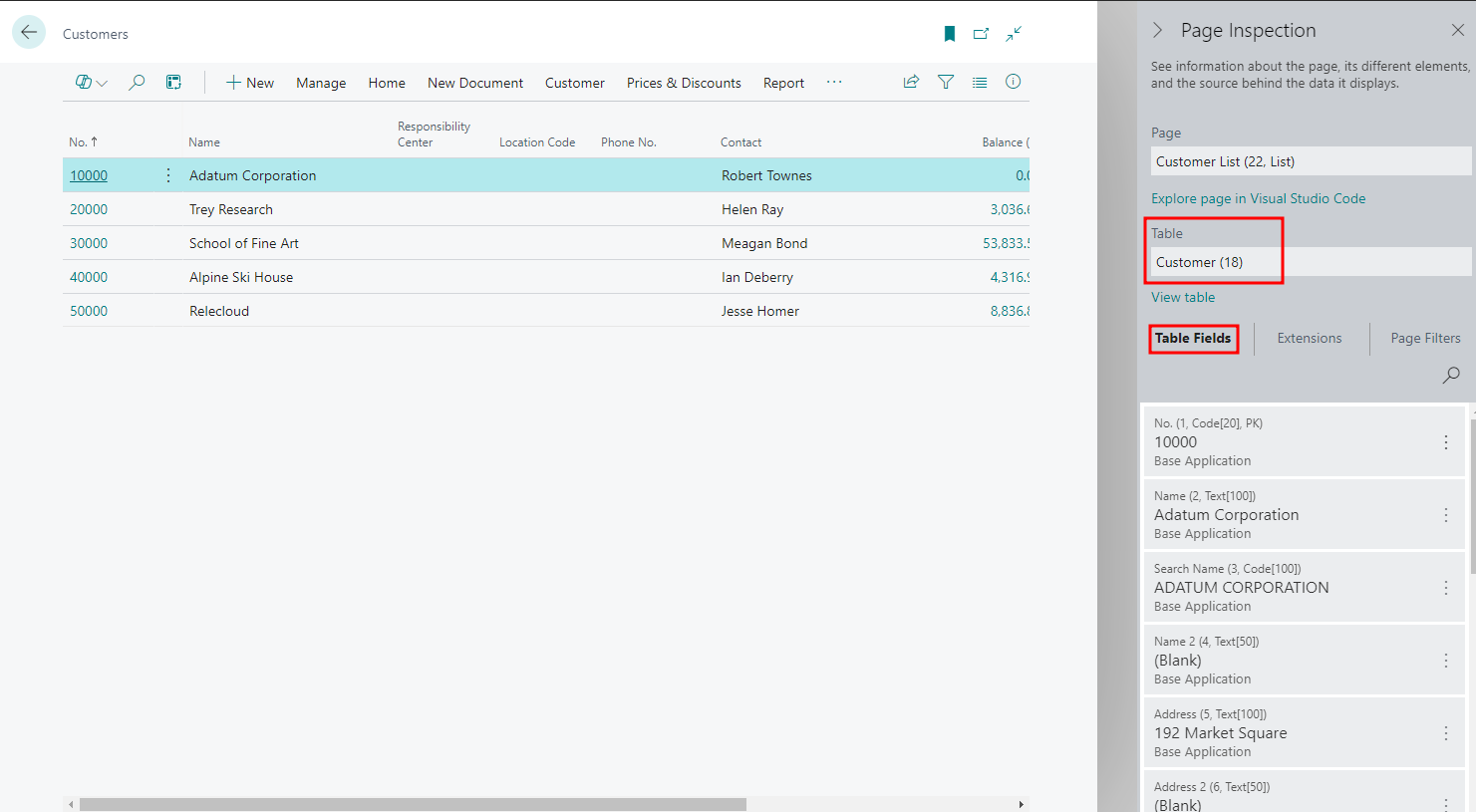
Once you know the table ID, you can open the whole table in the browser by adding &table=18 (or any other table ID) to your Business Central URL, if your permissions allow it.
Why Page Inspection matters for Power BI and reporting
Business Central pages often show calculated or combined values, and what you see on screen isn't always stored in one place. Before building a report or an export, Page Inspection helps you:
- Find the source table: the first step whether you're using the Power BI connector, an API or bc2adls.
- Find the right fields: many fields aren't exposed in the standard APIs. Knowing the table and field names tells you whether you need a custom API or a bulk export such as bc2adls, which lets you pick tables and fields directly.
- Spot customisations: fields added by extensions are listed separately, so you know what's standard and what isn't.
Best practices
- Inspect the right part of the page: many pages combine several tables, for example a header and lines. Select the section you need before reading the table name.
- Check FlowFields: some values, such as balances, are calculated from other tables rather than stored. Plan to recalculate them in your data model.
- Document what you find: keep a list of the tables and fields behind each report. It saves time later and helps developers building integrations.
Conclusion
Page Inspection is the fastest way to see which tables and fields sit behind a Business Central page. Press Ctrl + Alt + F1, note the table and fields, and you know exactly what to pull into Power BI or your data platform. For the next step, see our comparison of the ways to export data from Business Central.
Frequently asked questions
What is the shortcut for Page Inspection in Business Central?
Ctrl + Alt + F1. You can also open it from the ? (Help & Support) icon by choosing Inspect pages and data.
How do I find the table name of a page in Business Central?
Open the page, press Ctrl + Alt + F1, and read the table name and table ID at the top of the Table Fields tab in the Page Inspection pane.
Why can't I open Page Inspection?
Your user probably doesn't have permission. An administrator can assign the D365 TROUBLESHOOT permission set, which includes access to Page Inspection.