
On this page
bc2adls (Business Central to Azure Data Lake Storage) is an open-source extension that exports data from Dynamics 365 Business Central to Azure Data Lake Storage or a Microsoft Fabric lakehouse. Once it is running you can report on your ERP data in Power BI without going through the standard Business Central APIs.
This guide walks you through a complete bc2adls setup with Microsoft Fabric as the destination: installing the extension, registering the app in Microsoft Entra ID, preparing the Fabric lakehouse and notebook, and scheduling the exports in Business Central.
What is bc2adls?
bc2adls is a Business Central extension, originally published by Microsoft and now maintained by the community on GitHub. You choose the tables and fields to export. After the first full export, it only sends the records that changed since the last run, so the lake stays current without re-exporting everything. With Microsoft Fabric, a notebook then merges those changes into Delta tables in your lakehouse, where Power BI and other tools can read them.
Before you start
- A Business Central environment where you can upload extensions (Extension Management).
- Rights in Microsoft Entra ID to register an app and grant admin consent, or an administrator who can do it for you.
- A Microsoft Fabric workspace on a Fabric capacity where you can create a lakehouse and a notebook.
- Fabric admin access (or your Fabric admin) to allow service principals to use Fabric APIs.
1. Install the bc2adls extension
- Download the latest release from the bc2adls releases page.
- Unzip the downloaded file.
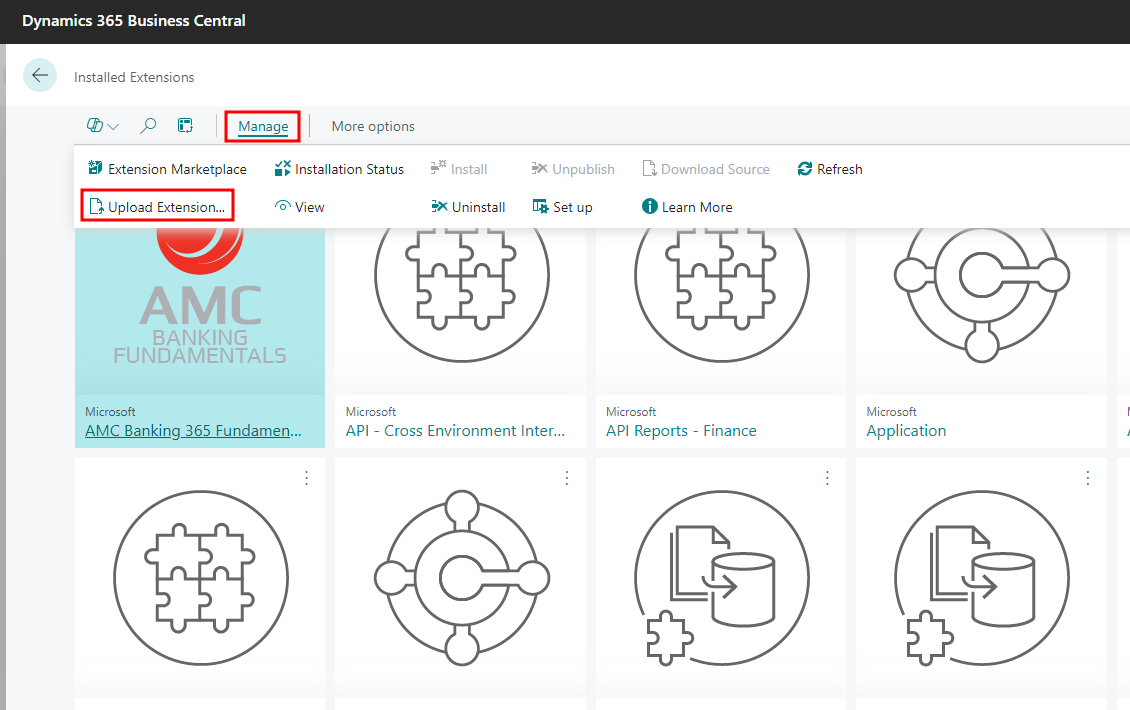
- Open Business Central and search for Extension Management.
- Choose Manage → Upload Extension and upload the unzipped
.appfile.
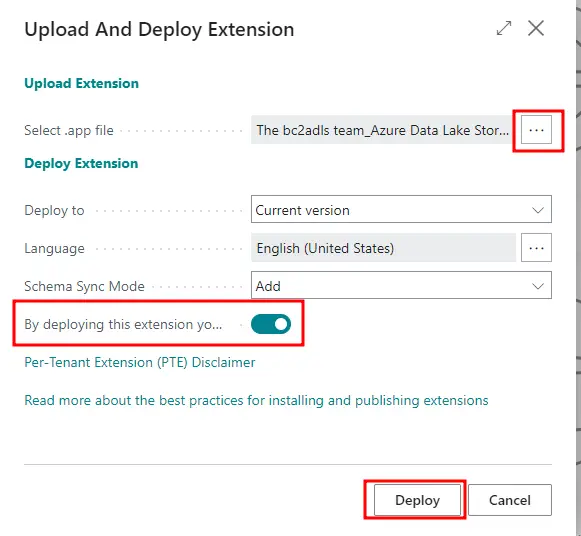
- Check that the deployment succeeded in Extension Installation Status.

2. Configure Azure (Microsoft Entra ID)
2.1 Register an app
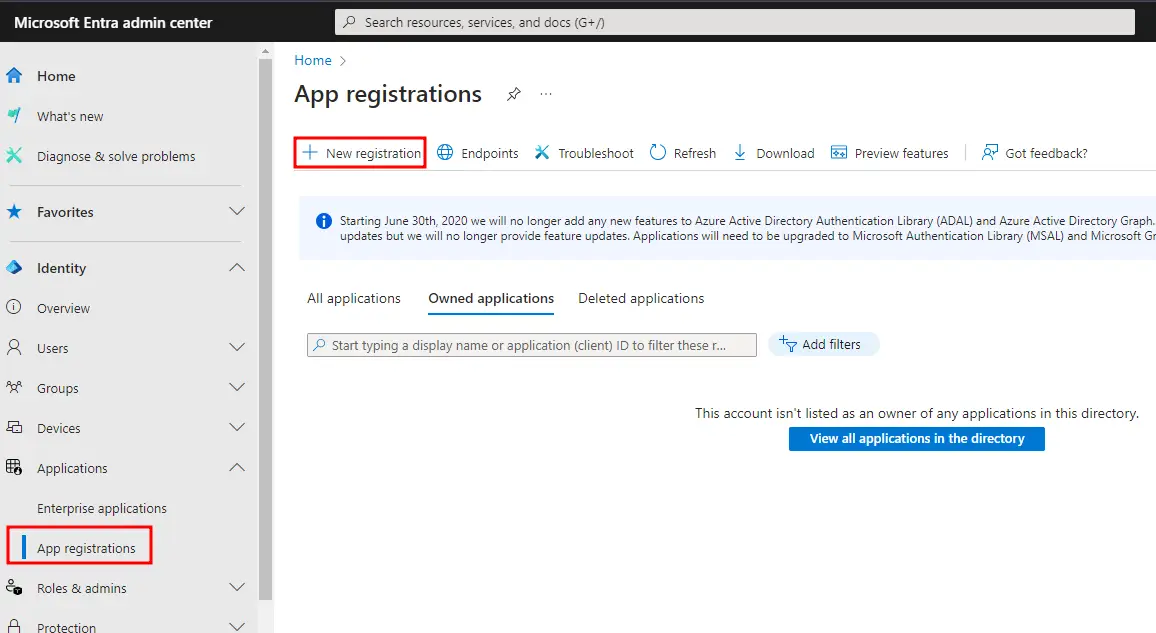
- Go to the Microsoft Entra admin center.
- Register a new application, for example
bc2adls.
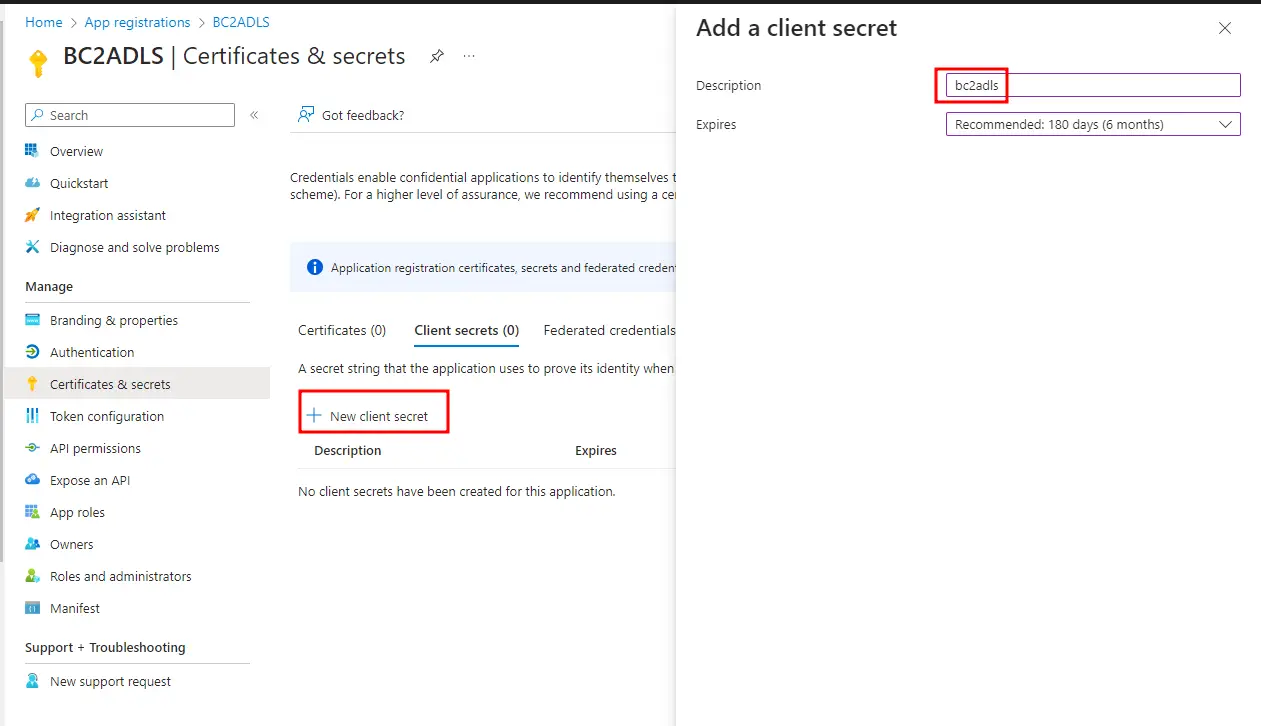
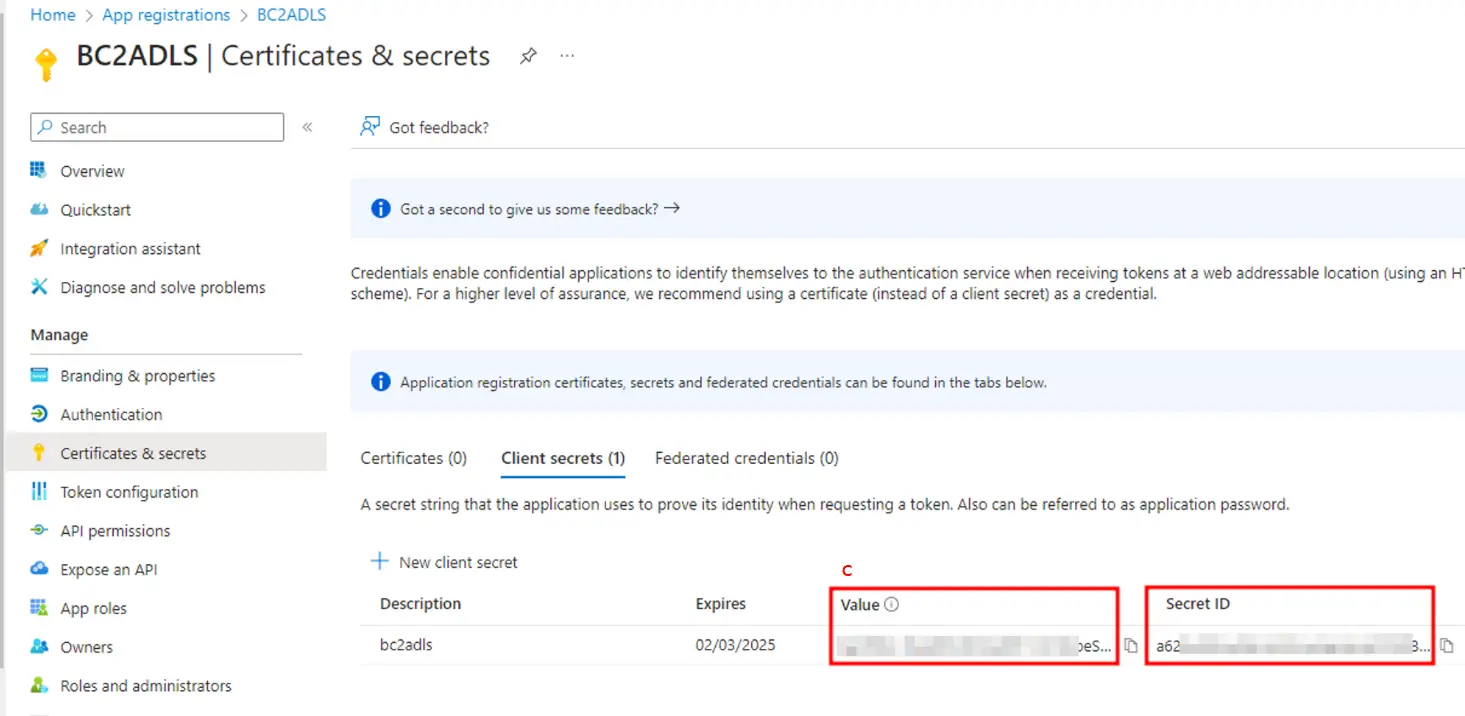
- Create a new client secret and copy its value right away (it is only shown once).
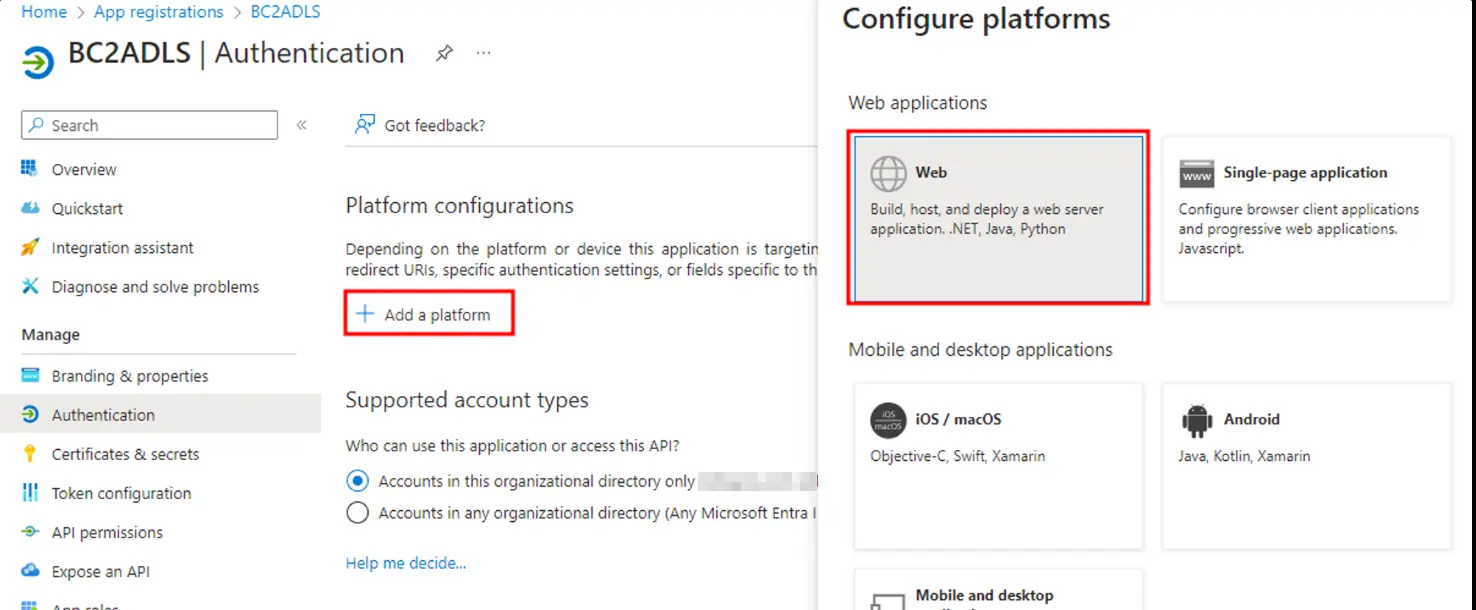
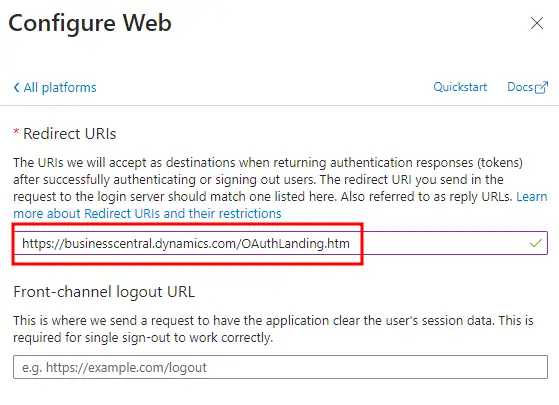
- Add a web redirect URI:
https://businesscentral.dynamics.com/OAuthLanding.htm
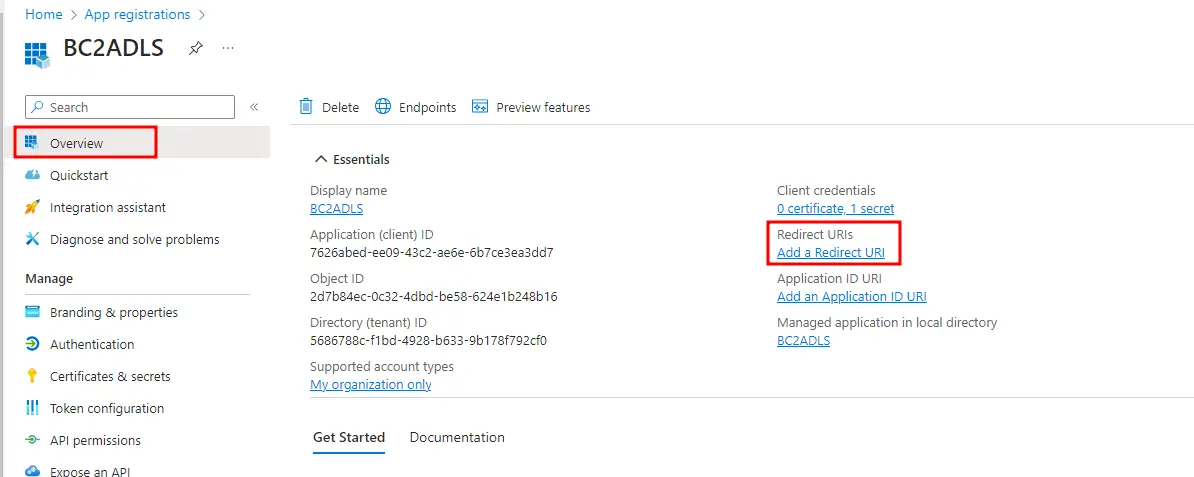
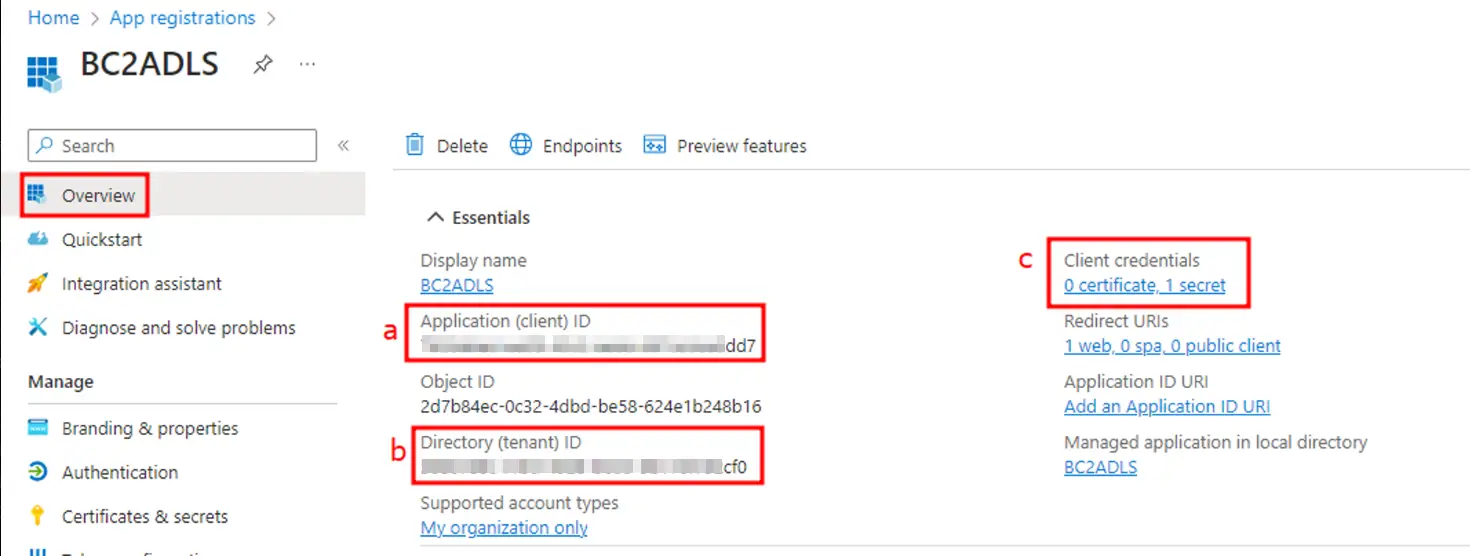
- Go back to Overview and note the Application (client) ID and Directory (tenant) ID. You will need them in Business Central.
2.2 Add permissions to the service principal
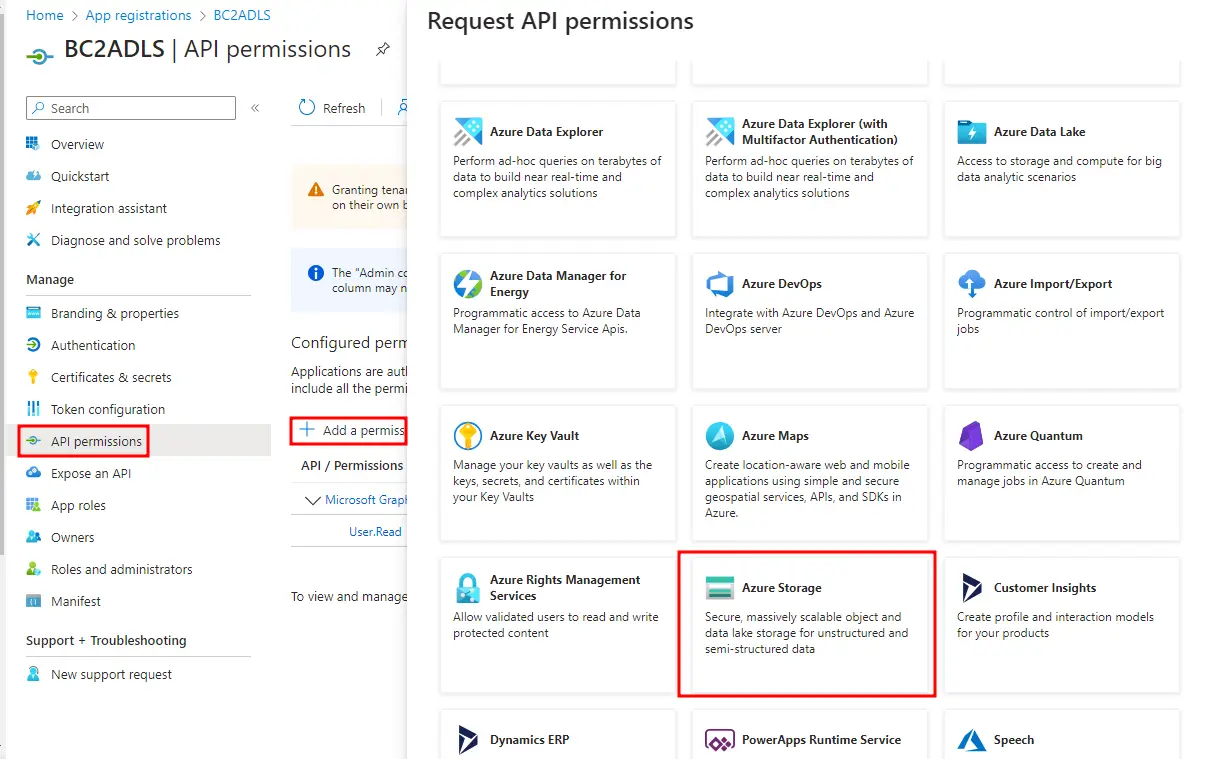
- Open API permissions and choose Add a permission.
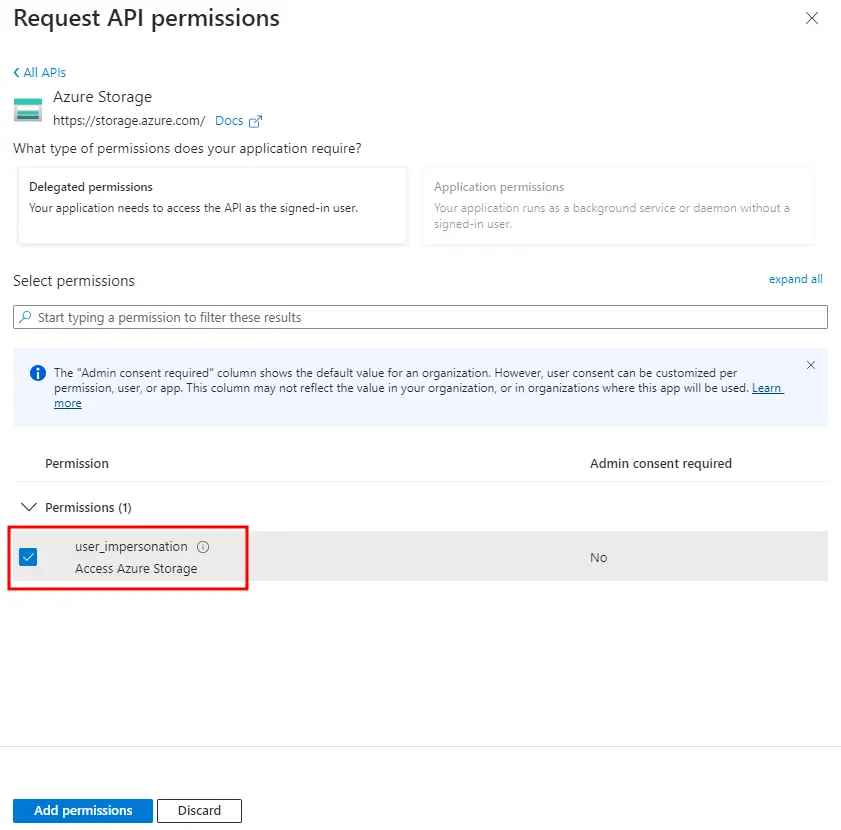
- Select Azure Storage with Delegated permissions.
- Select
user_impersonationand add the permission.
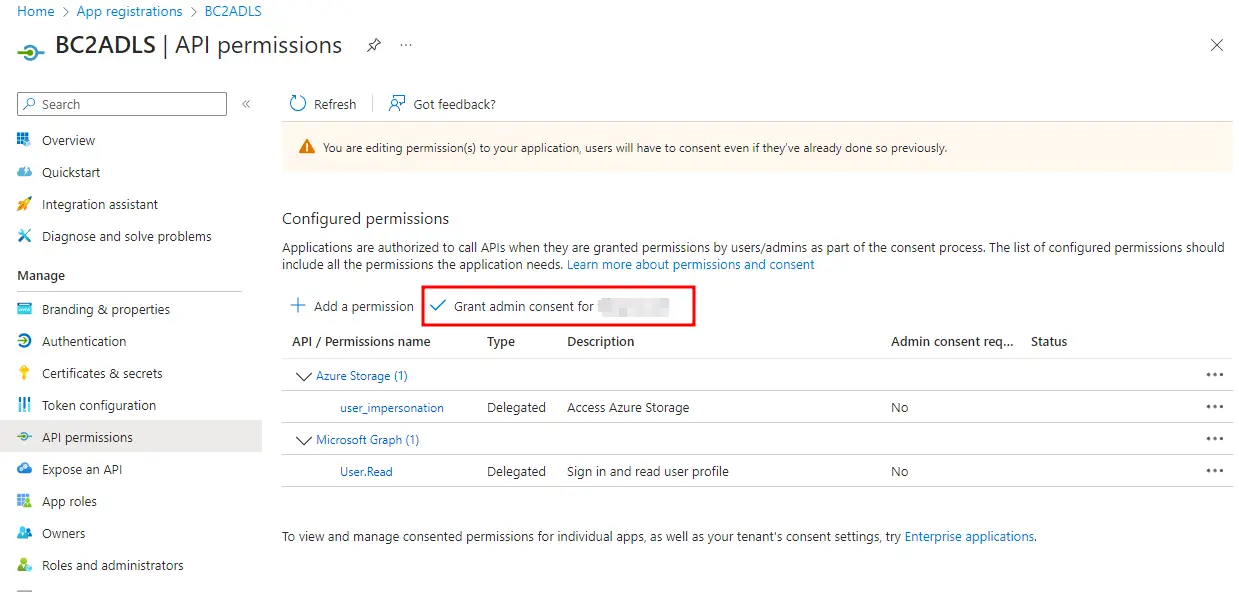
- Grant admin consent for your tenant.
3. Configure Microsoft Fabric
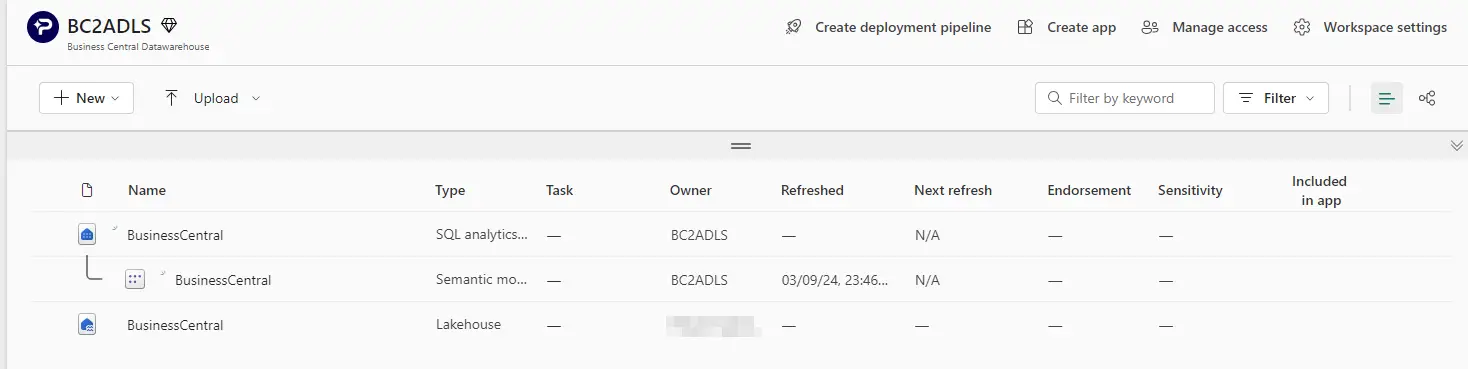
- Create a new lakehouse in your Fabric workspace.
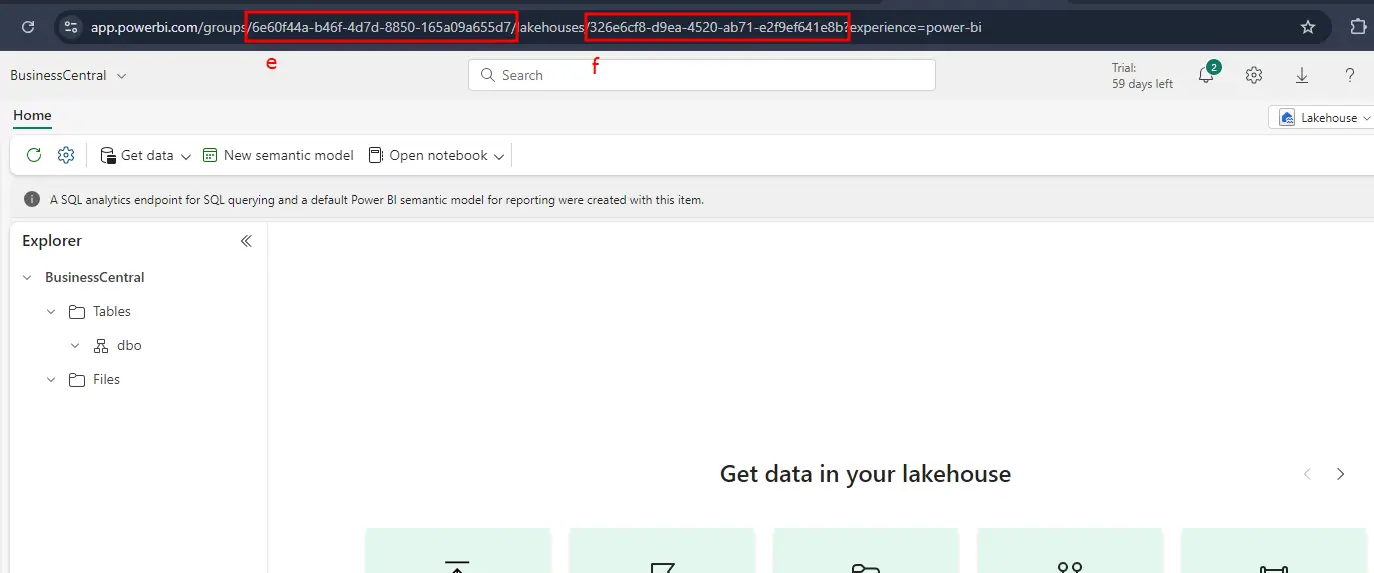
- Note the workspace and lakehouse details from the URL. You will enter them in Business Central later.
3.1 Create the notebook
- Create a new notebook in your Fabric workspace.
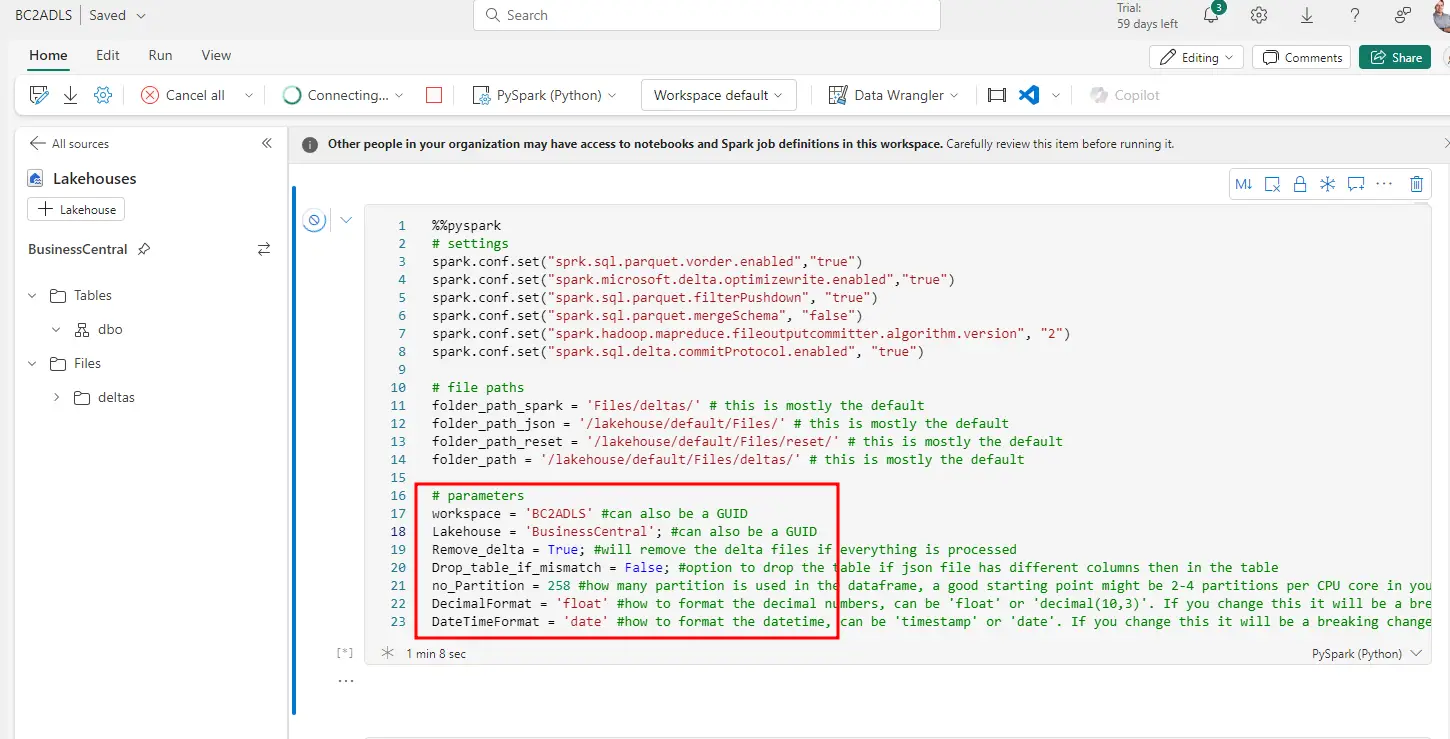
- Copy in the code from CopyBusinessCentral.ipynb in the bc2adls repository.
- Update the parameters for your environment. In the screenshot, e is the workspace and f is the lakehouse.
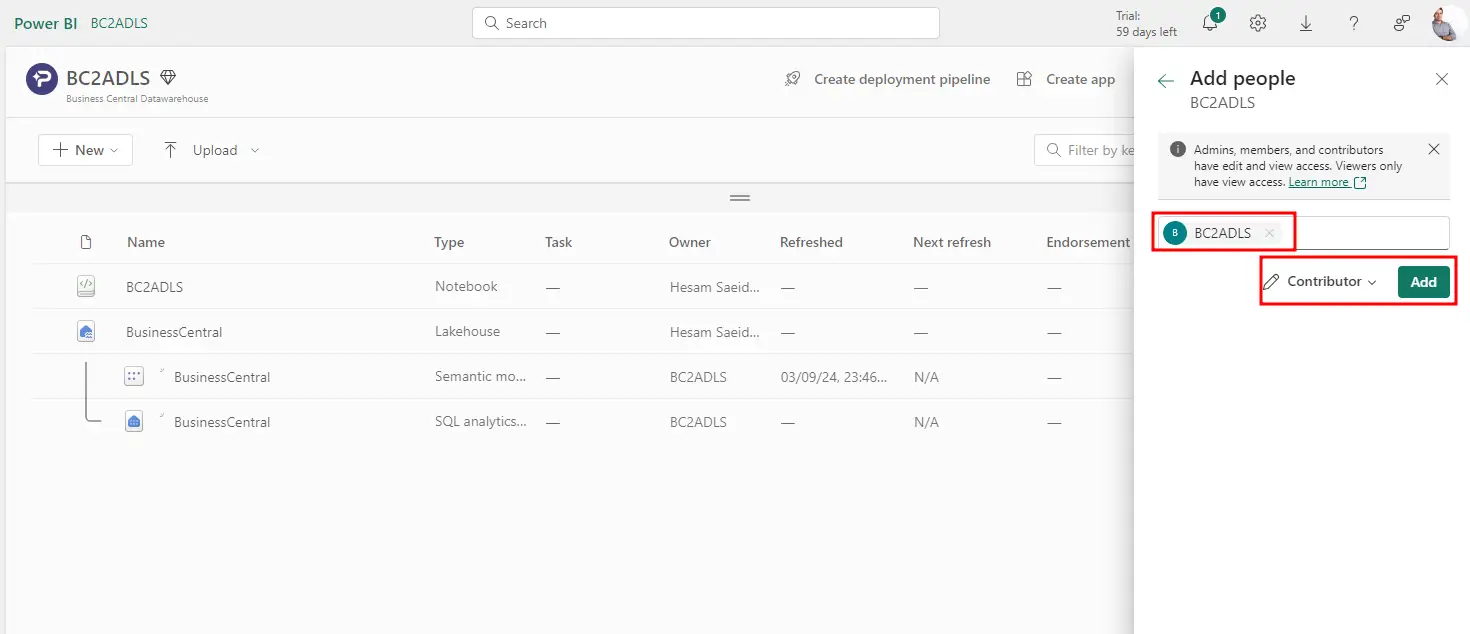
3.2 Give the service principal access to the workspace
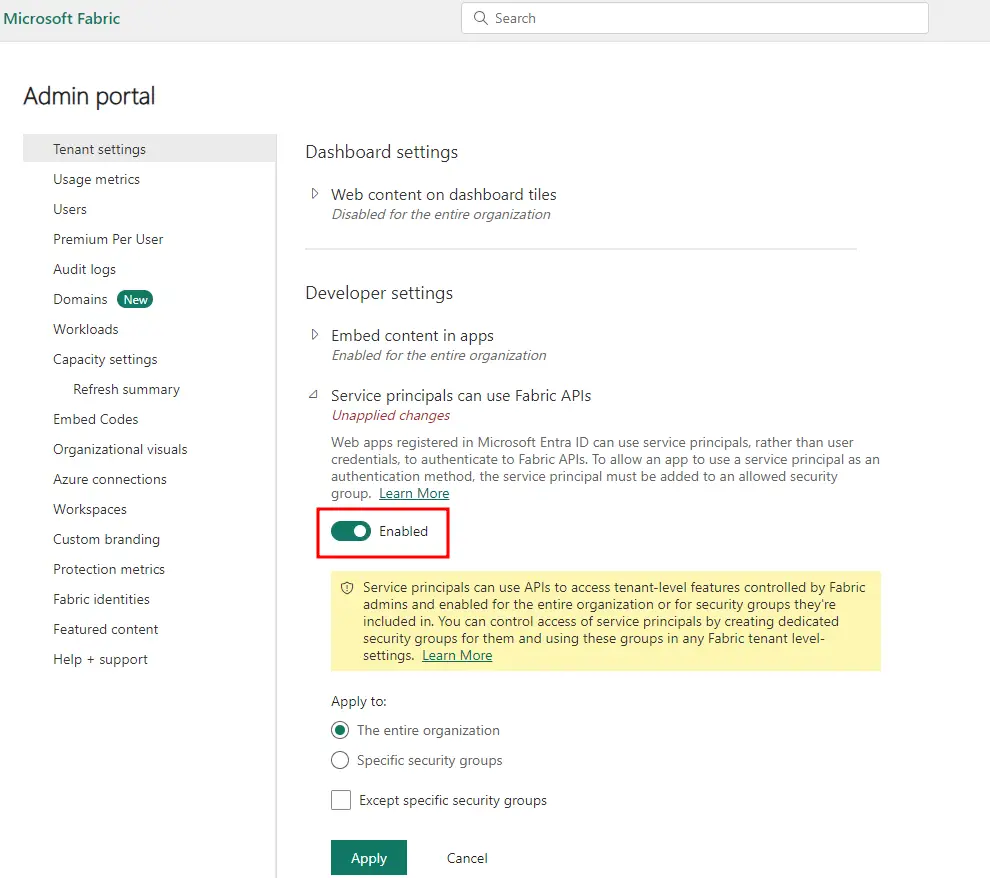
- In the Fabric admin portal, enable the tenant setting that lets service principals use Fabric APIs.
- Add your app's service principal to the workspace with a role that can write to the lakehouse.
4. Configure the export in Business Central
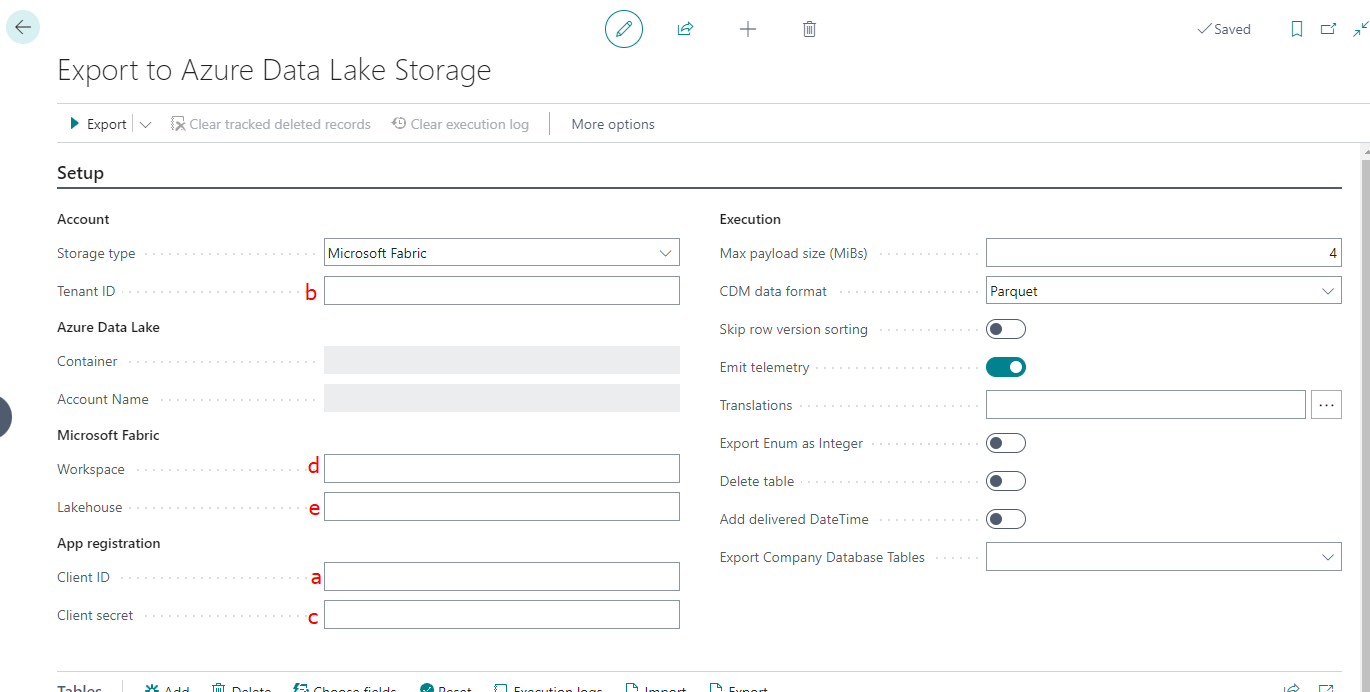
- In Business Central, search for Export to Azure Data Lake Storage.
- Enter the tenant ID, client ID, client secret and the Fabric workspace and lakehouse details from the previous steps.
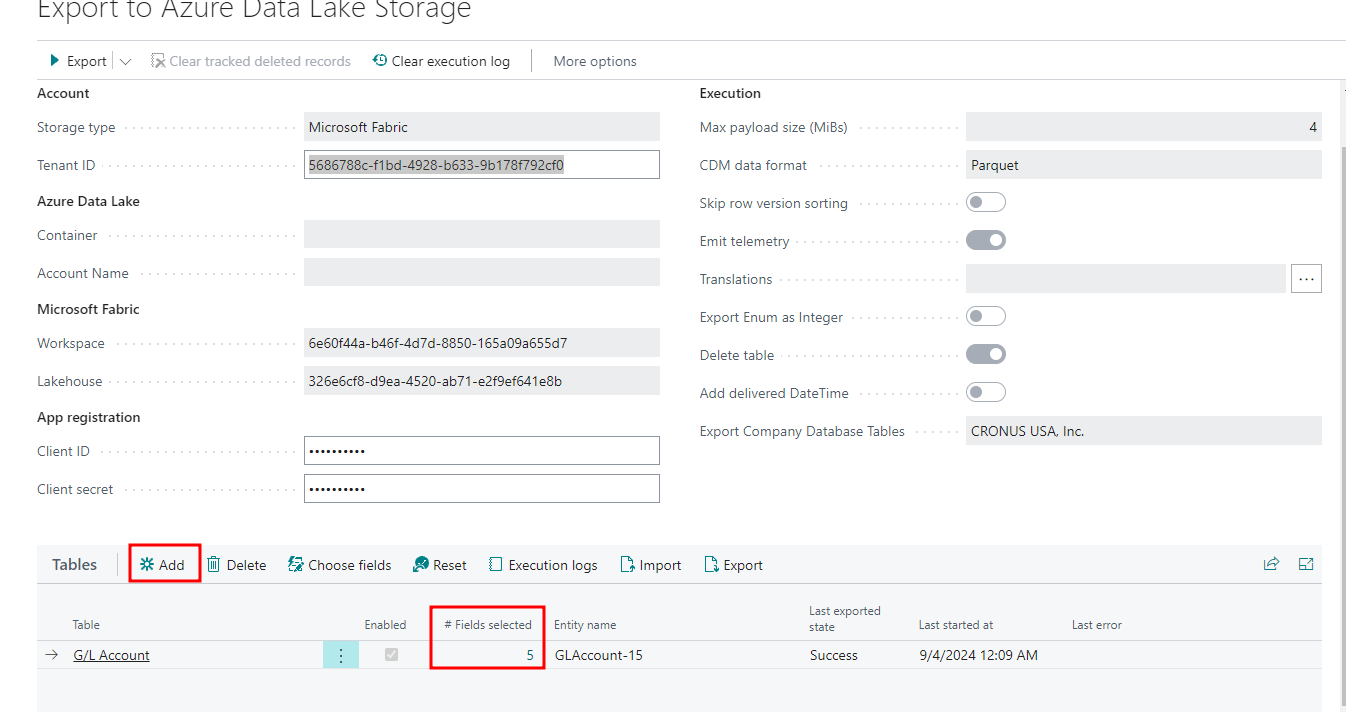
- Add the tables and fields you want to export.
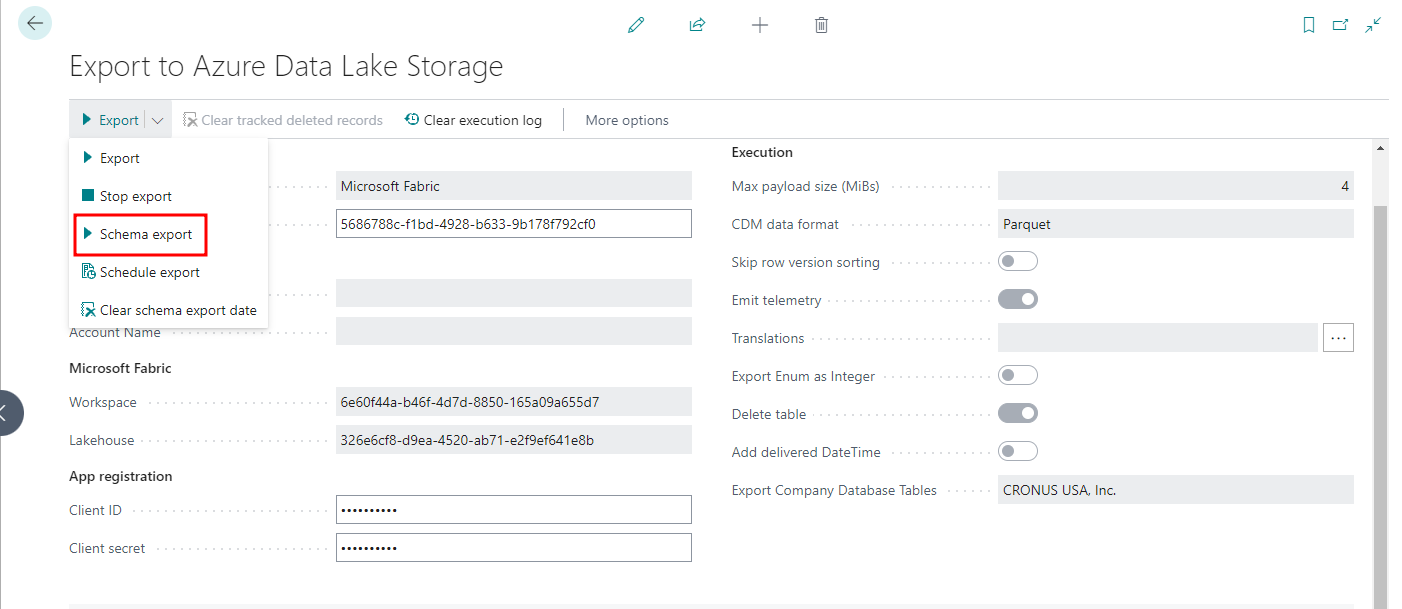
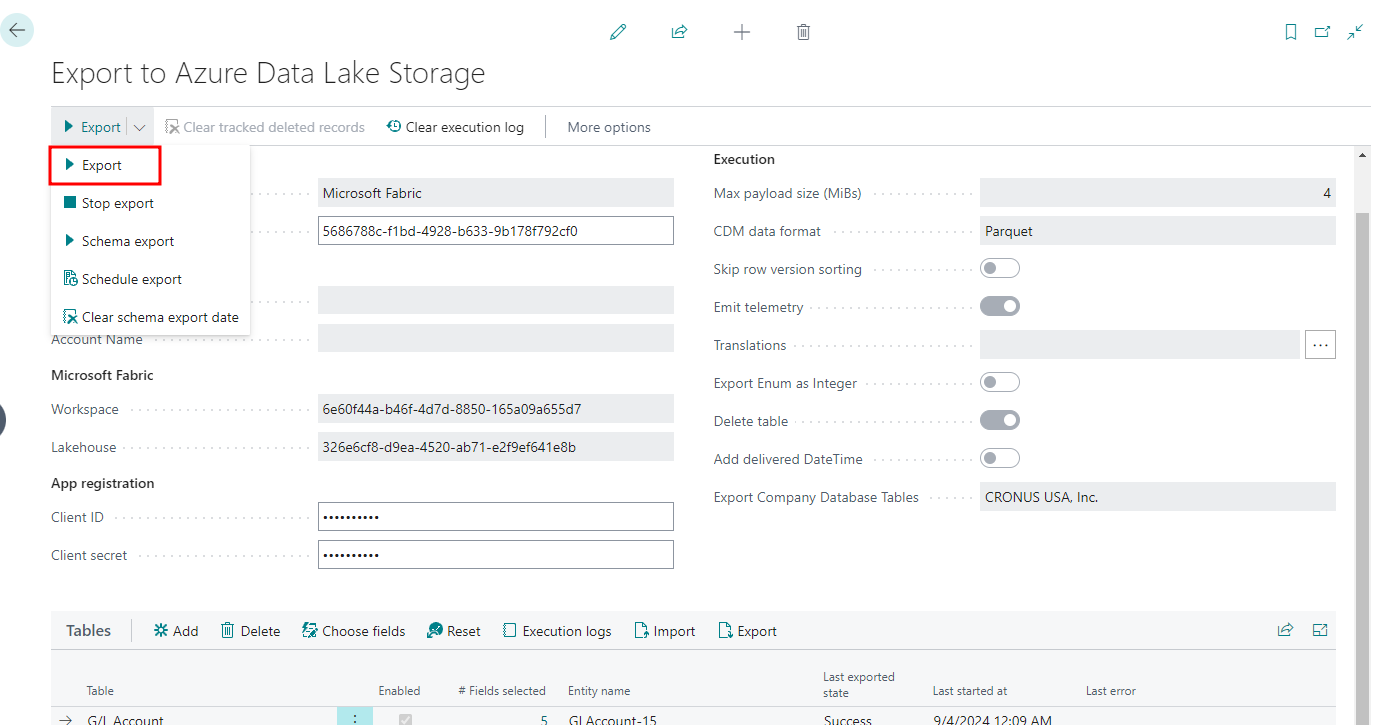
- Run Schema export first, then Export to send the data.
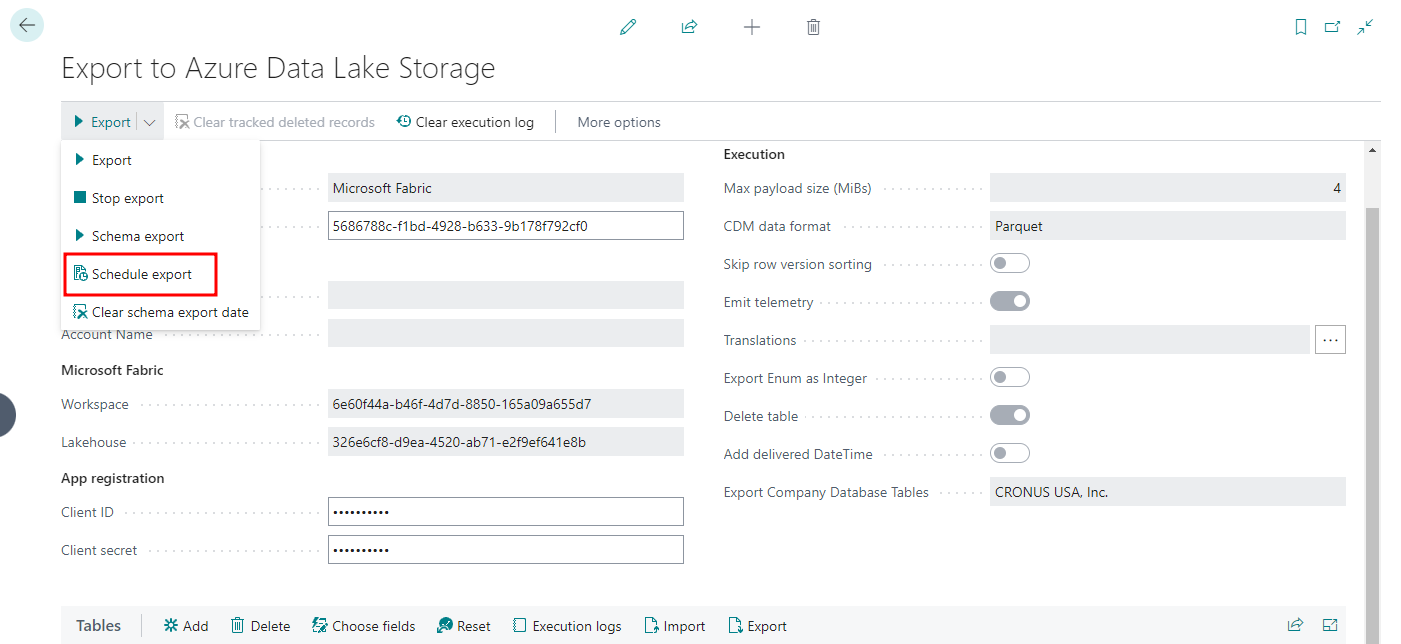
- Schedule recurring exports with a job queue entry.
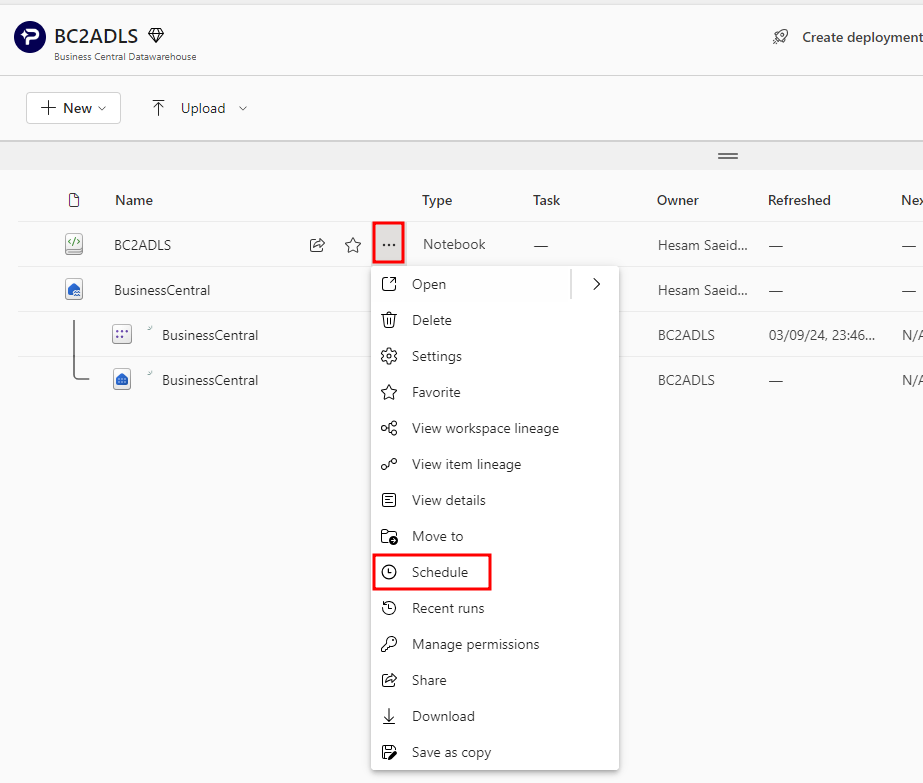
- Schedule the Fabric notebook to run after the export, so new changes are merged into the lakehouse tables.
Conclusion
You now have a working bc2adls setup that exports Business Central data into your Microsoft Fabric lakehouse on a schedule. Test it with a few tables first, check that the lakehouse tables update after each run, then add the rest of the tables you need for reporting.
Want to compare bc2adls with the other options? Read three ways to extract data from Dynamics Business Central. If you need to find the table behind a Business Central page before adding it to the export, see how to use page inspection in Business Central.
Frequently asked questions
What is bc2adls?
bc2adls is an open-source Business Central extension that exports Business Central tables to Azure Data Lake Storage or a Microsoft Fabric lakehouse, so you can report on the data without querying Business Central directly.
Is bc2adls free?
The extension itself is open source and free to use. You still pay for the destination: Microsoft Fabric capacity or Azure storage, plus any Power BI licences you use for reporting.
Does bc2adls work with Microsoft Fabric?
Yes. bc2adls can write directly to a Fabric lakehouse. A notebook from the bc2adls repository then merges each export into Delta tables that Power BI can read.
Does bc2adls export all data every time?
No. After the first full export, bc2adls only exports records that were created, changed or deleted since the previous run.